Documentation
Everything you need to know about using MedicLog
Getting Started
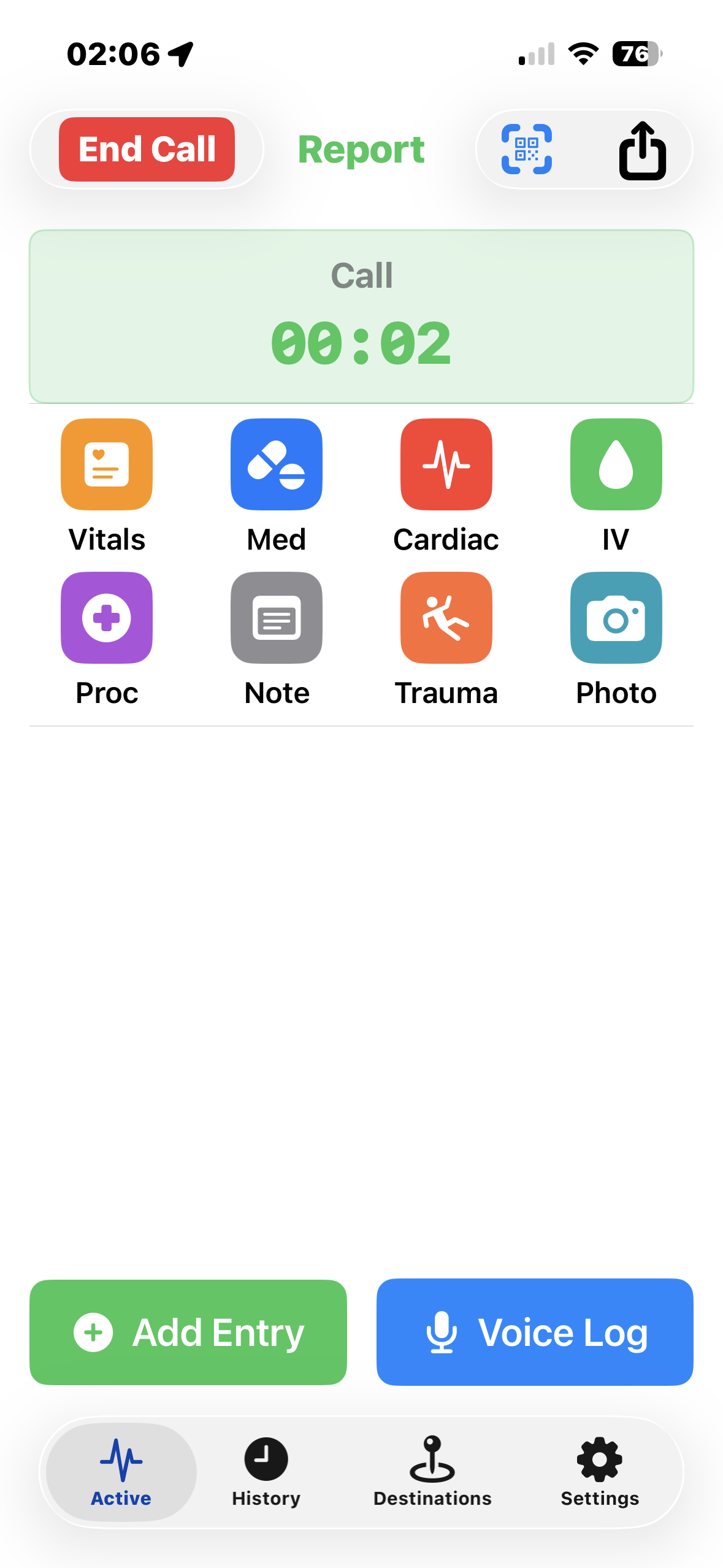
Start a Call
Set your agency, unit, and run number. Add optional patient demographics (name, DOB, age, sex) if needed for your documentation.
Tap Start Call when you arrive on scene. The call timer begins immediately.
Resume previous calls from the button below if you need to add entries after the fact.
Quick Entry
MedicLog's quick-tap interface is designed for gloved hands in moving ambulances. No typing required.
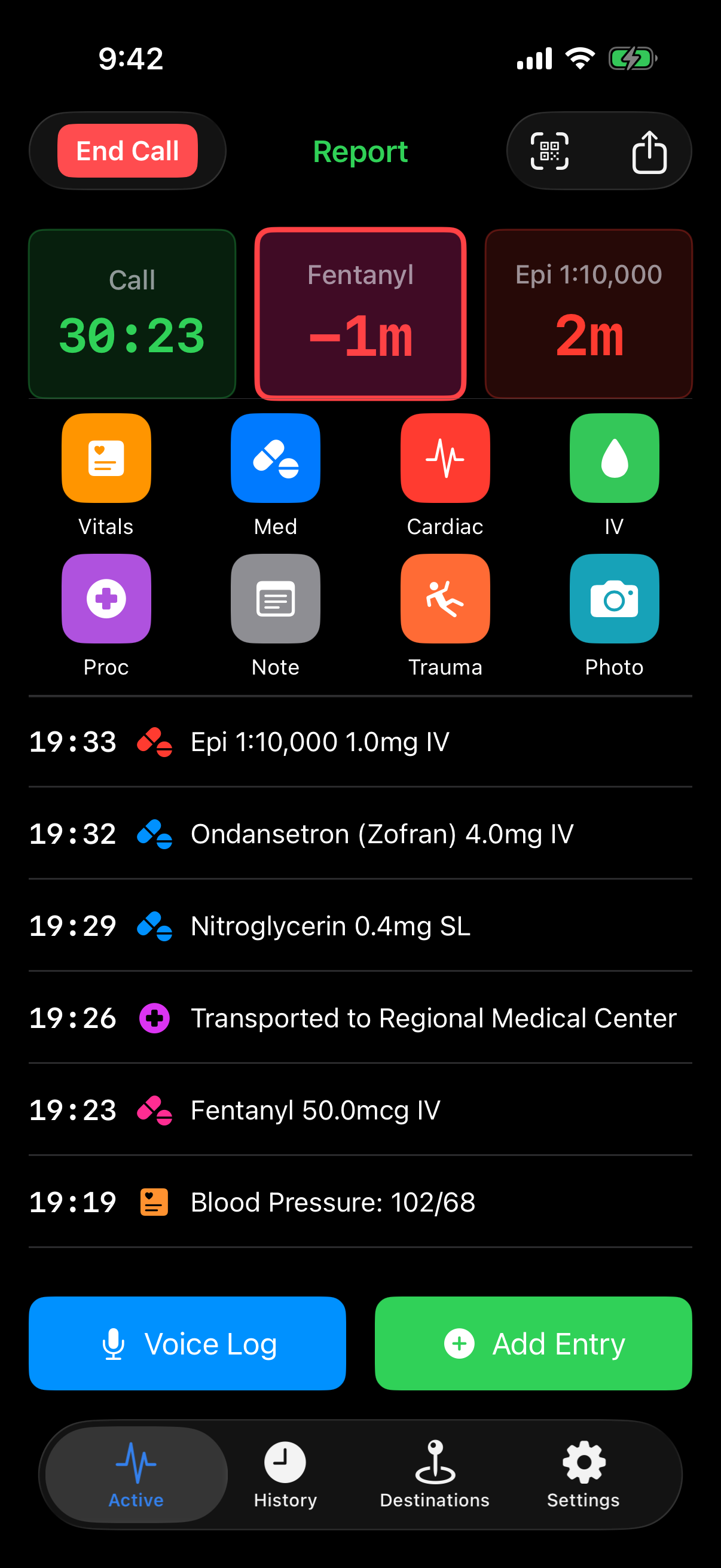
Active Call View
The main interface during a call. Quick-tap buttons across the top: Vitals, Meds, Cardiac, IV, Procedures, Notes, Trauma, Photo.
Active medication timers display at the top with color-coded urgency. Your log entries scroll below with timestamps.
Voice Log button for hands-free entry. Add Entry for manual input.
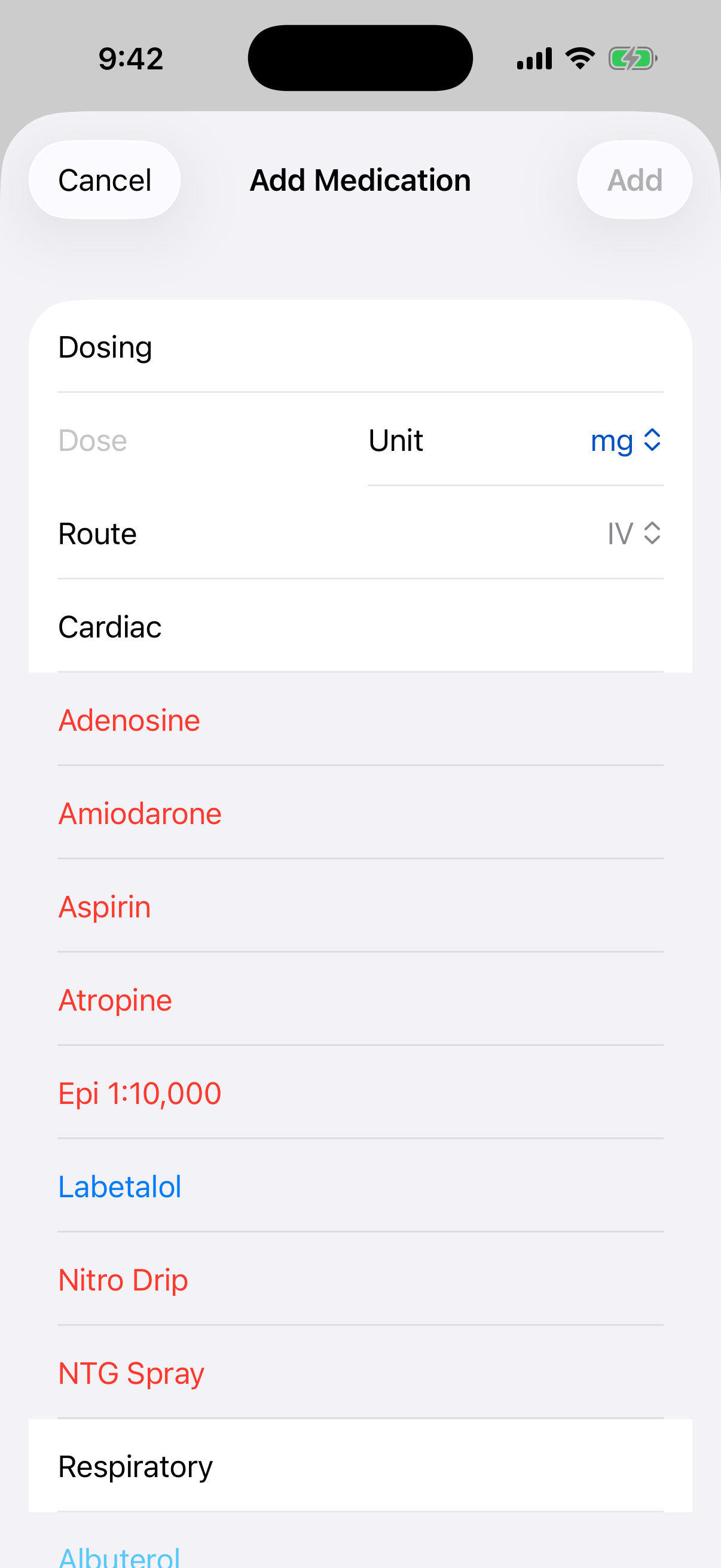
Medication Picker
Tap Med to see your formulary organized by category (Cardiac, Respiratory, etc.).
Select a medication, confirm dose and route. Entry logs automatically with timestamp, and relevant timers start.
Customize your formulary in Settings to match your protocols.
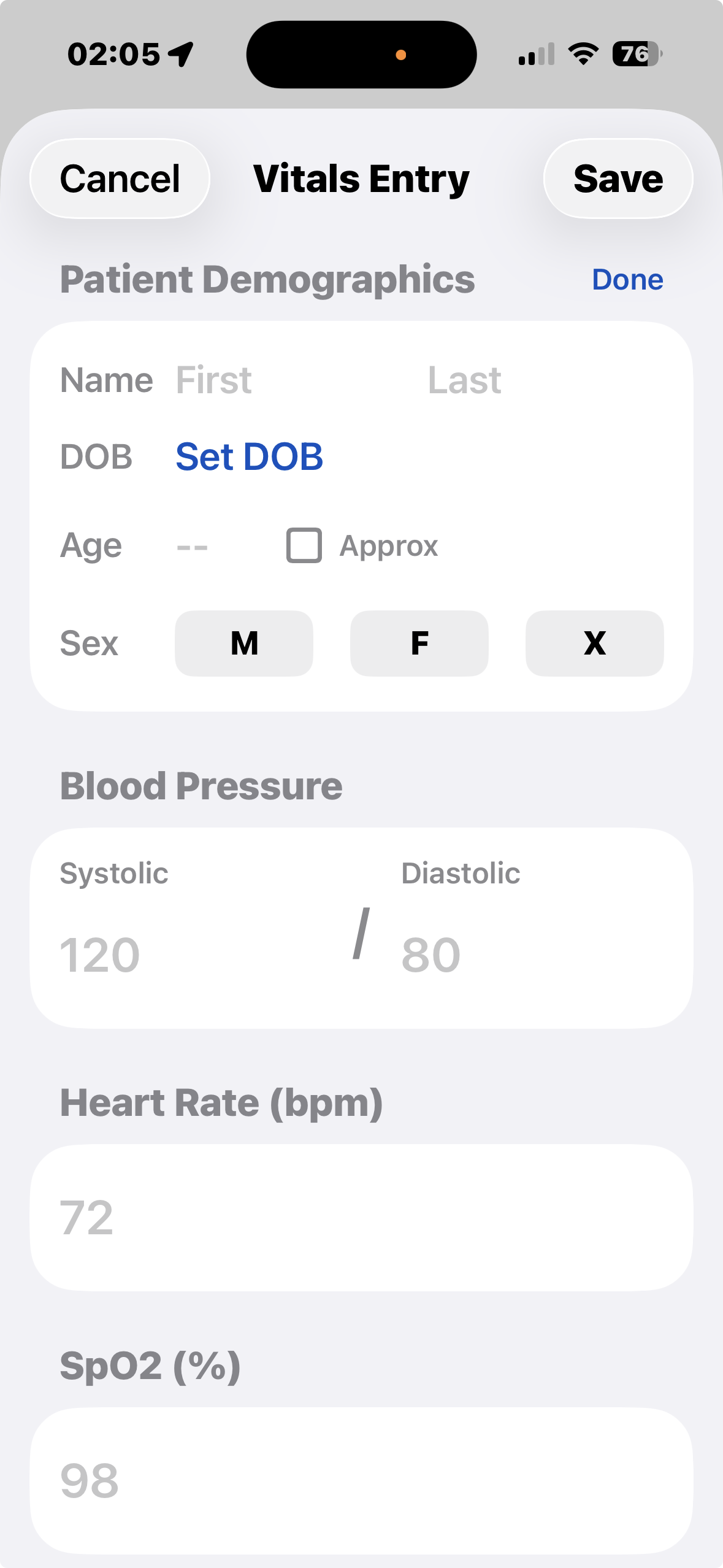
Vitals Entry
Quick entry grid for BP, Heart Rate, SpO2, Respirations. Scroll down for GCS, pupils, and more.
Patient demographics section at top if you need to update age/sex mid-call.
All values log as a single vitals entry with timestamp.
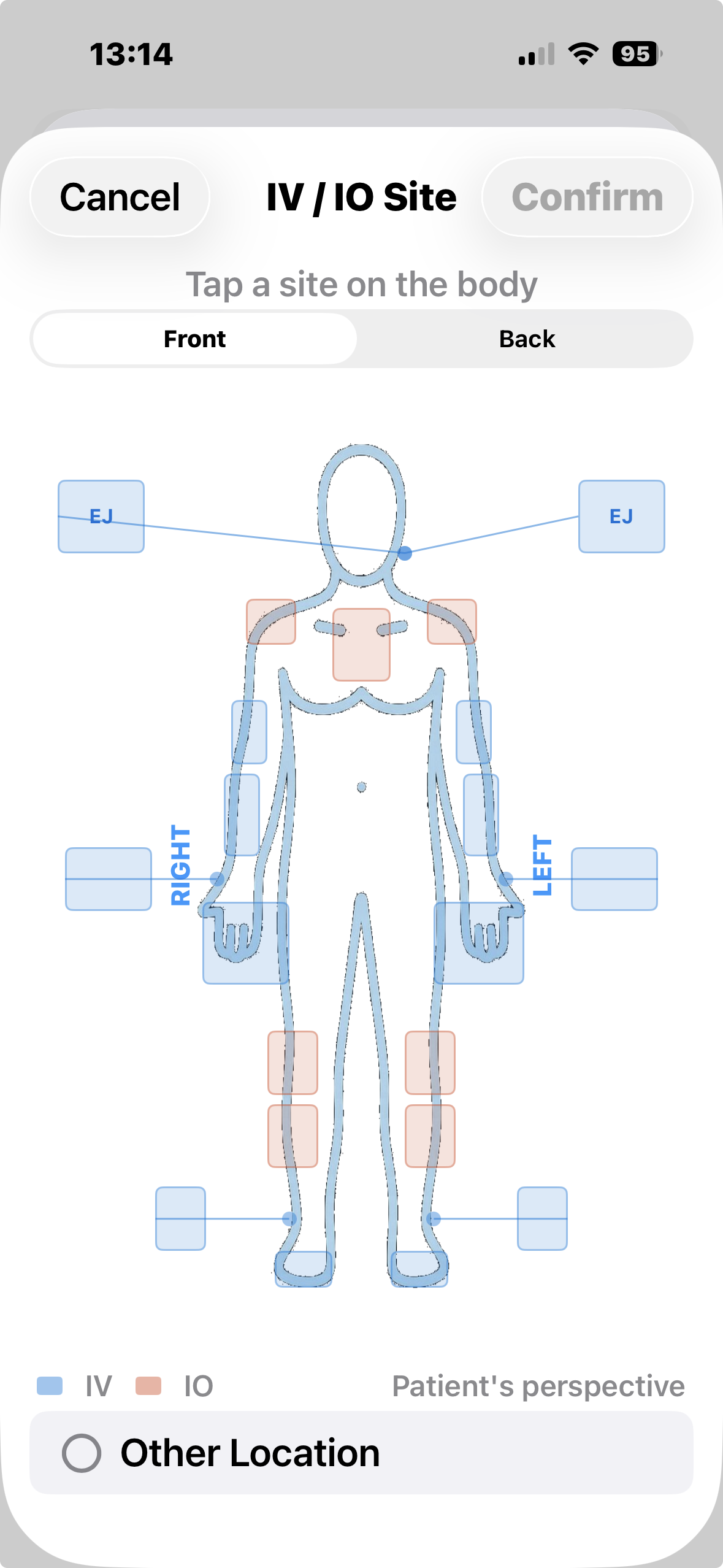
IV / IO Site Selector
Tap IV to open the body diagram. Blue zones mark IV access sites, salmon zones mark IO sites. Tap the exact anatomical location — antecubital, EJ, tibial, humeral, and more.
Front/Back toggle covers all surface anatomy. Patient's perspective orientation keeps left/right intuitive at the bedside.
The selected site logs with the entry. Useful for documenting difficult access attempts or multi-provider situations.
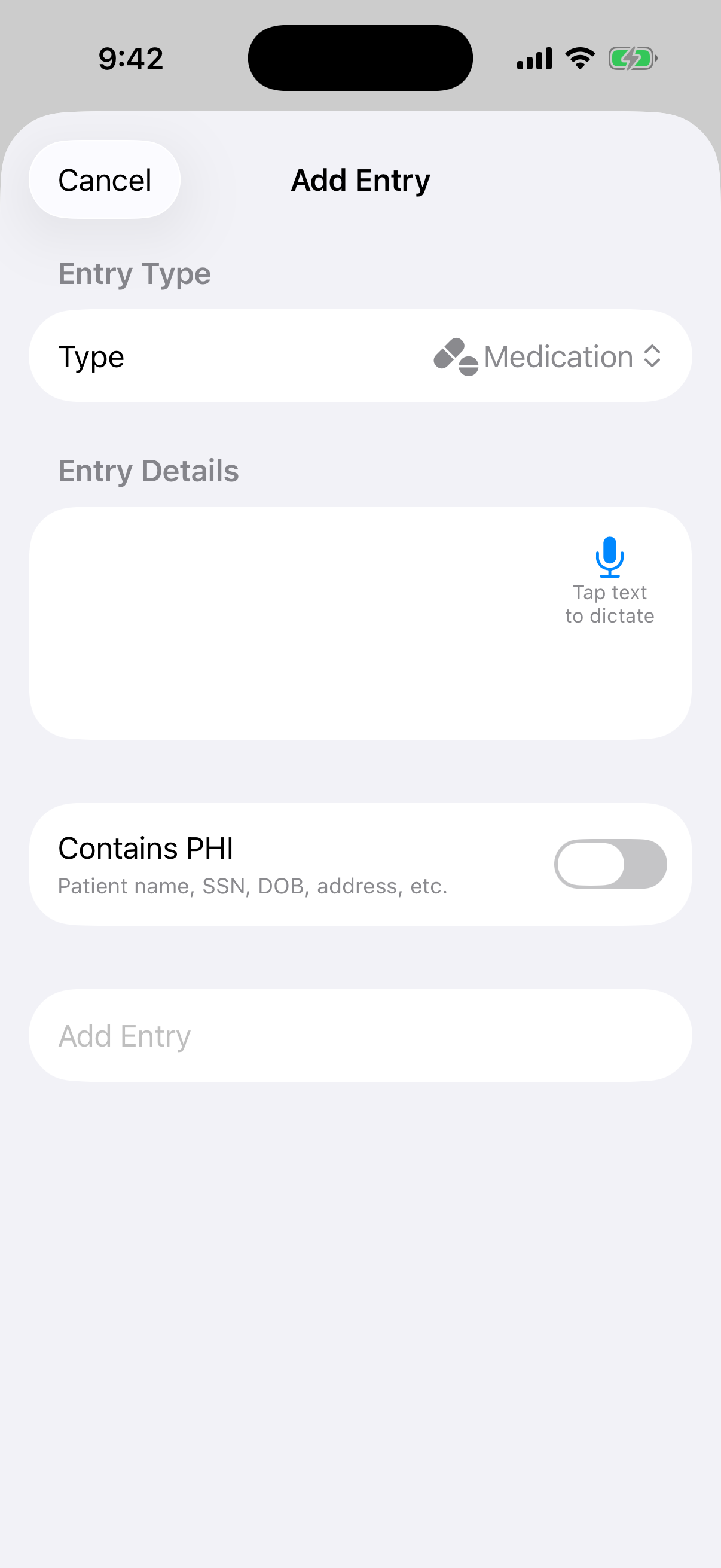
Add Entry Form
Manual entry when you need to type something specific. Select entry type (Medication, Vitals, Procedure, etc.).
Voice dictation available - tap the microphone icon to speak instead of type.
PHI toggle marks entries containing patient-identifiable information for proper redaction during export.
Medication Timers
Never miss a redose window. MedicLog automatically tracks medication timing with haptic alerts.
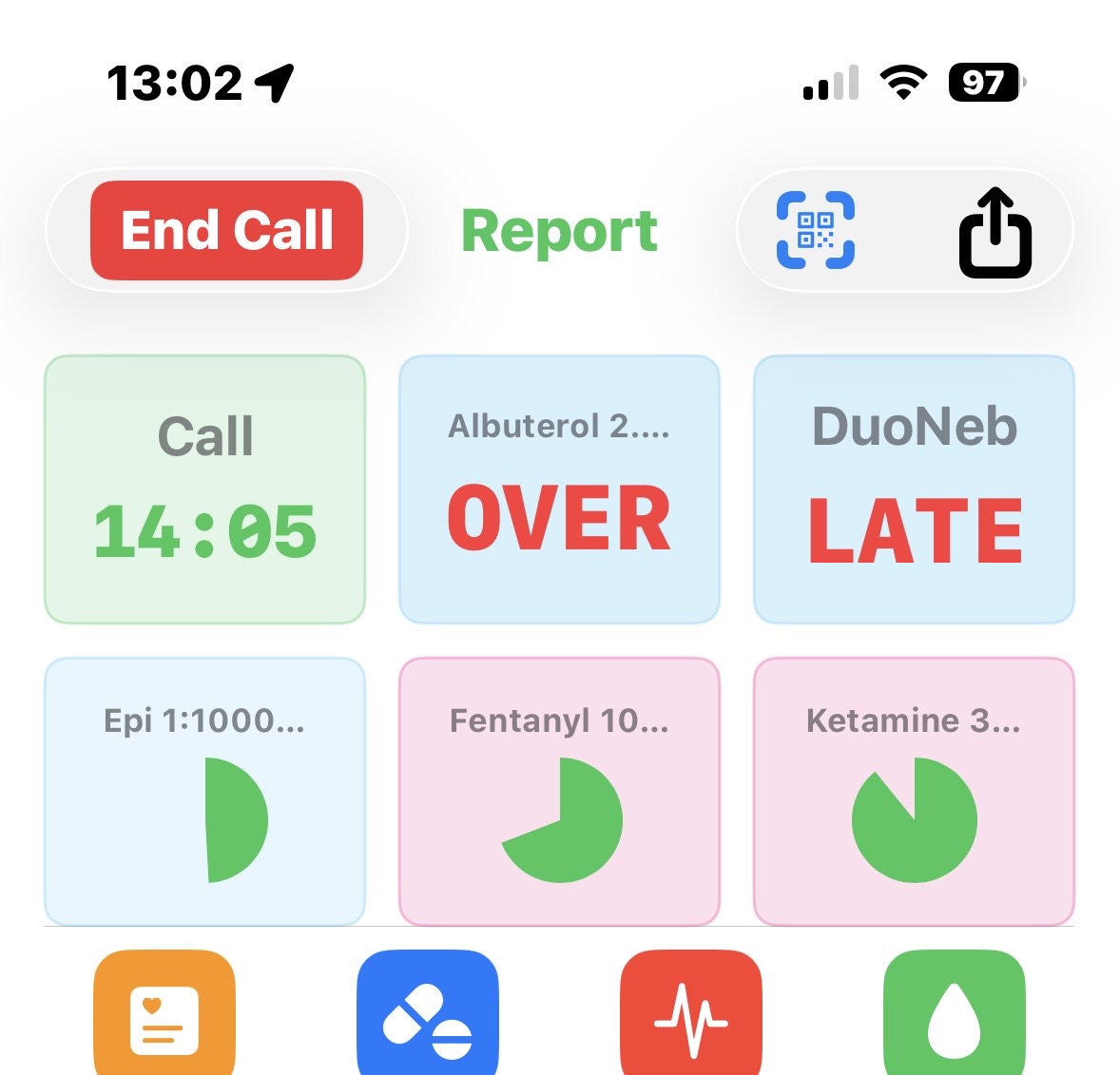
Timer Interactions
Double-tap any timer pill at the top to see detailed options. You can redose, snooze, mark as withheld, or delete the timer entirely.
Colors tell the story at a glance: Green = time remaining, Yellow = approaching redose window, Red = OVERDUE - needs attention now.
On the call clock (top-left countdown), double-tap to minimize it if you need more screen space. Tap again to restore.
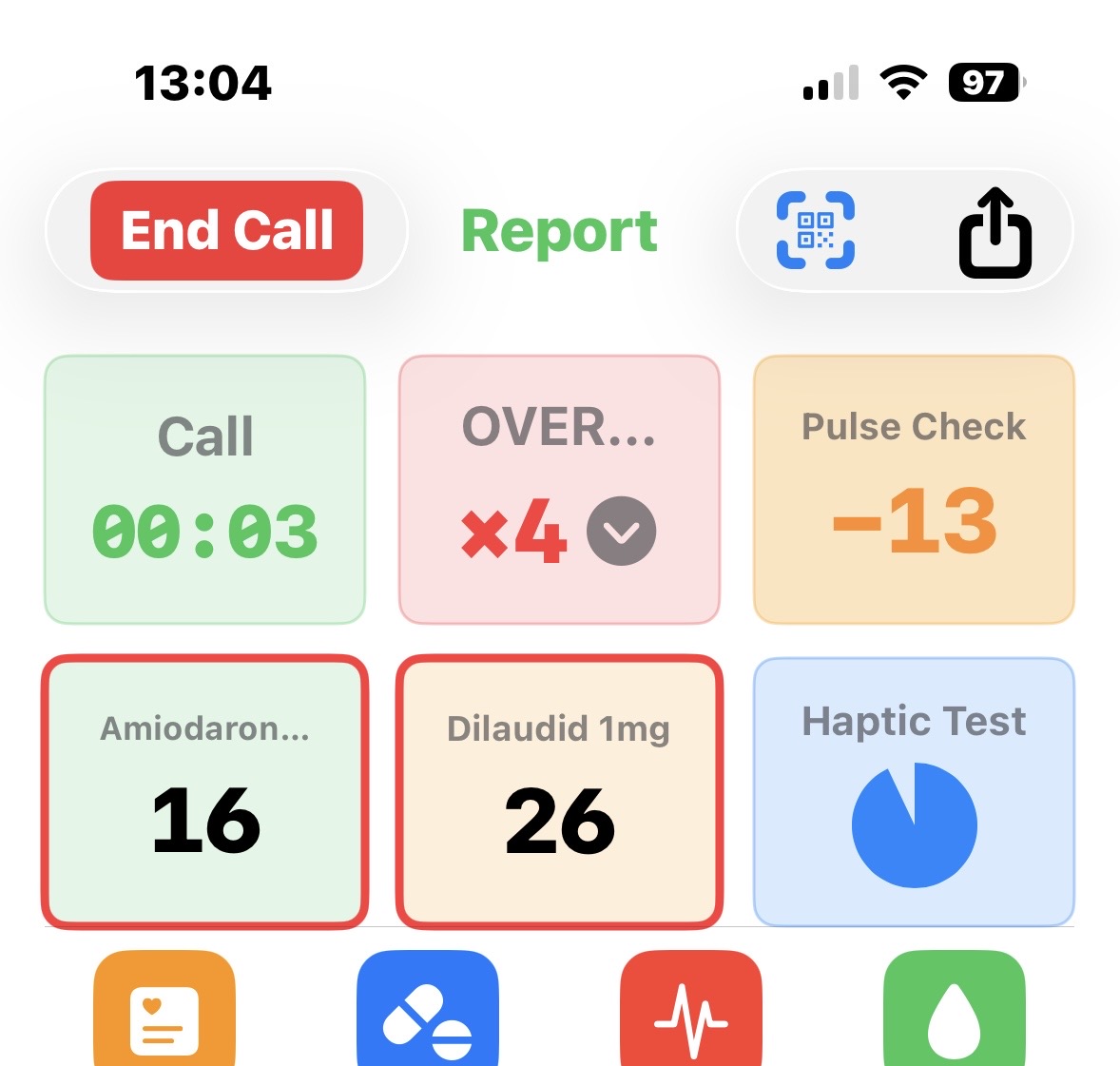
OVER Timer Grouping
When multiple timers expire, MedicLog groups fully expired timers into a compact OVER...×3 badge to keep your active timers visible.
Oldest expired timers group first (you've already made a decision on those). Newest expired timers stay individually visible since they're more actionable.
Tap the OVER group to expand and see all expired timers individually. The group auto-collapses after a few seconds to keep your screen clean.
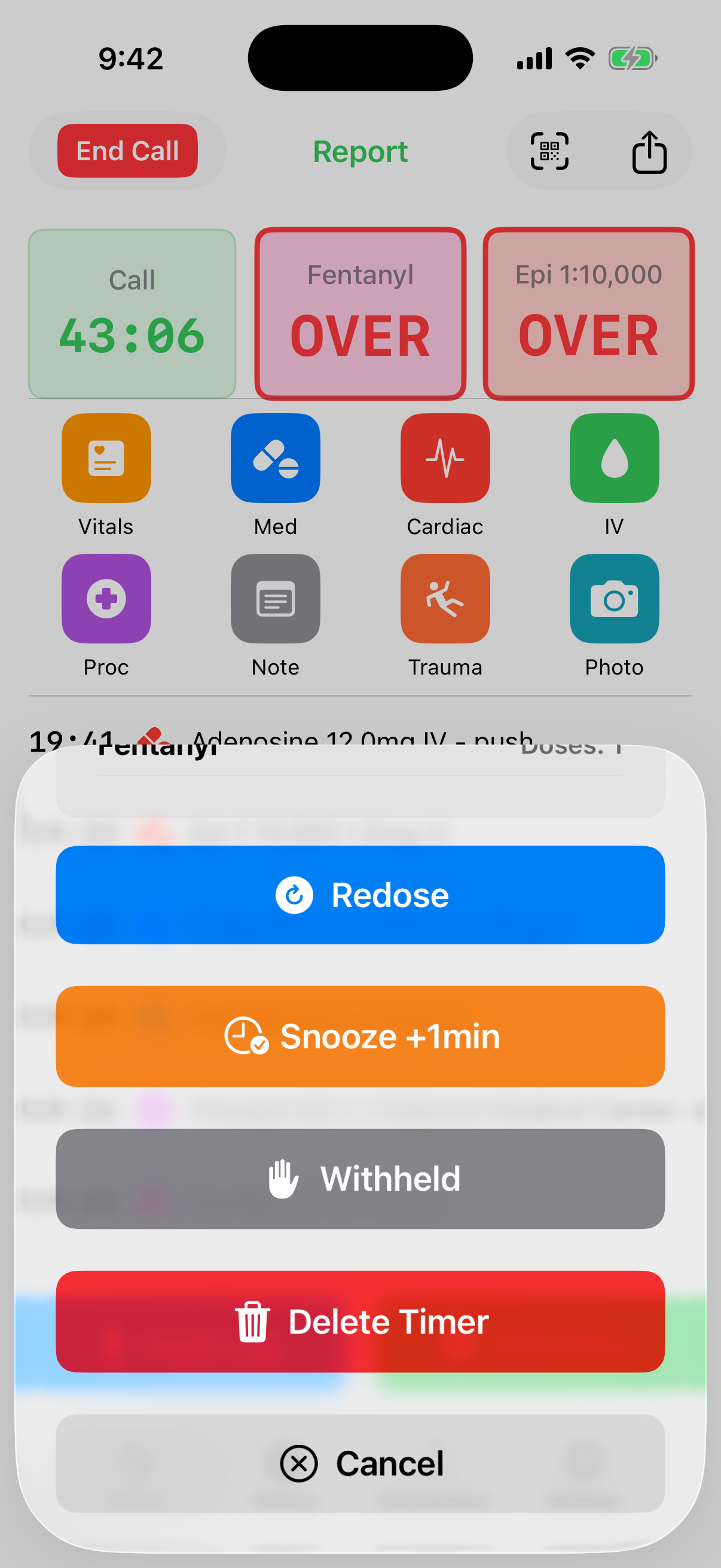
Timer Actions
When a timer expires, you get options: Redose (log another dose), Snooze (extend timer), Withheld (document decision not to give), or Delete.
Color-coded urgency - green when time remains, yellow approaching, red when OVER.
Haptic alerts at 30 seconds and expiration on both iPhone and Apple Watch.
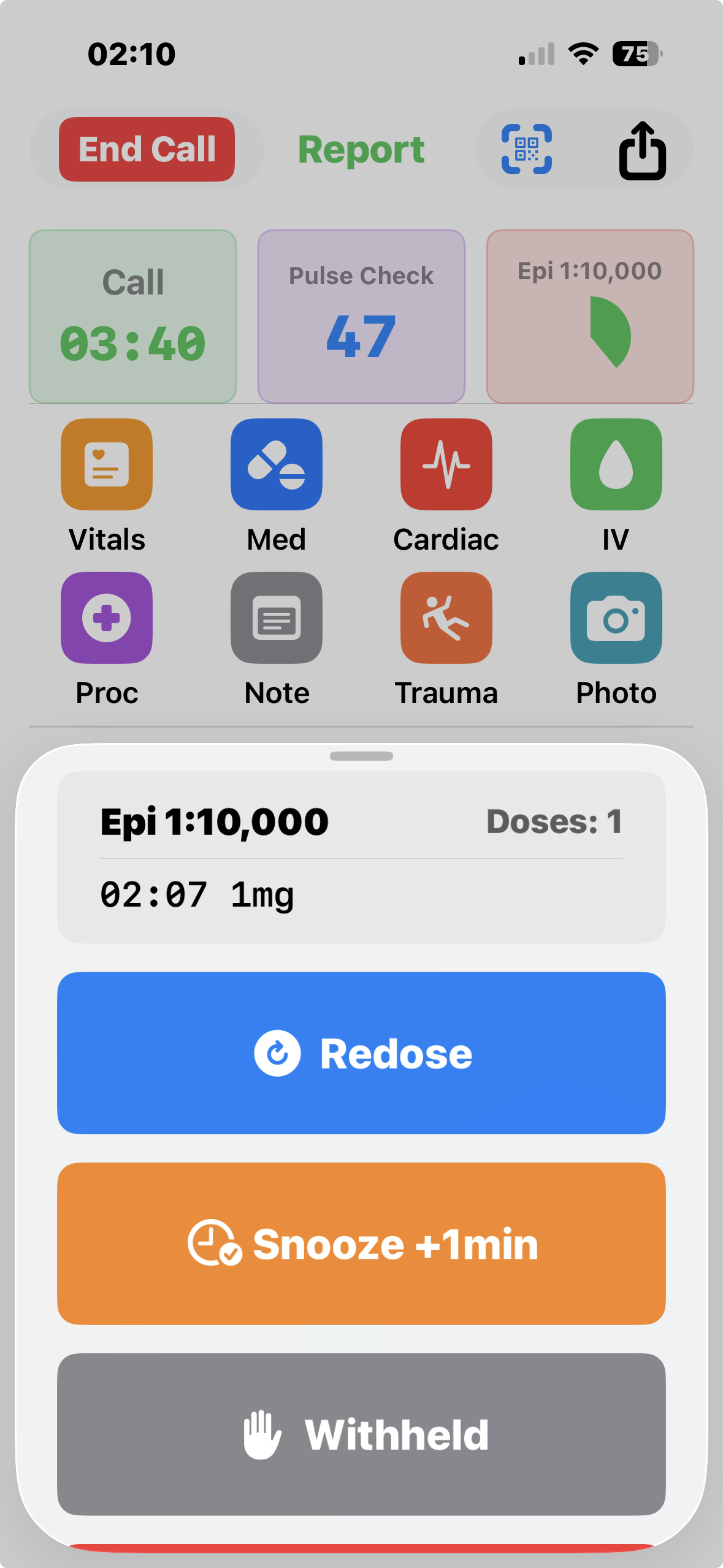
Redose Flow
One tap on Redose logs another dose of the same medication with the same dose/route.
Fresh timer starts automatically. No need to navigate back through the medication picker.
Dose count tracks in the timer pill so you know how many you've given.
Voice Logging
MedicLog is built voice-first because your hands are busy saving lives.
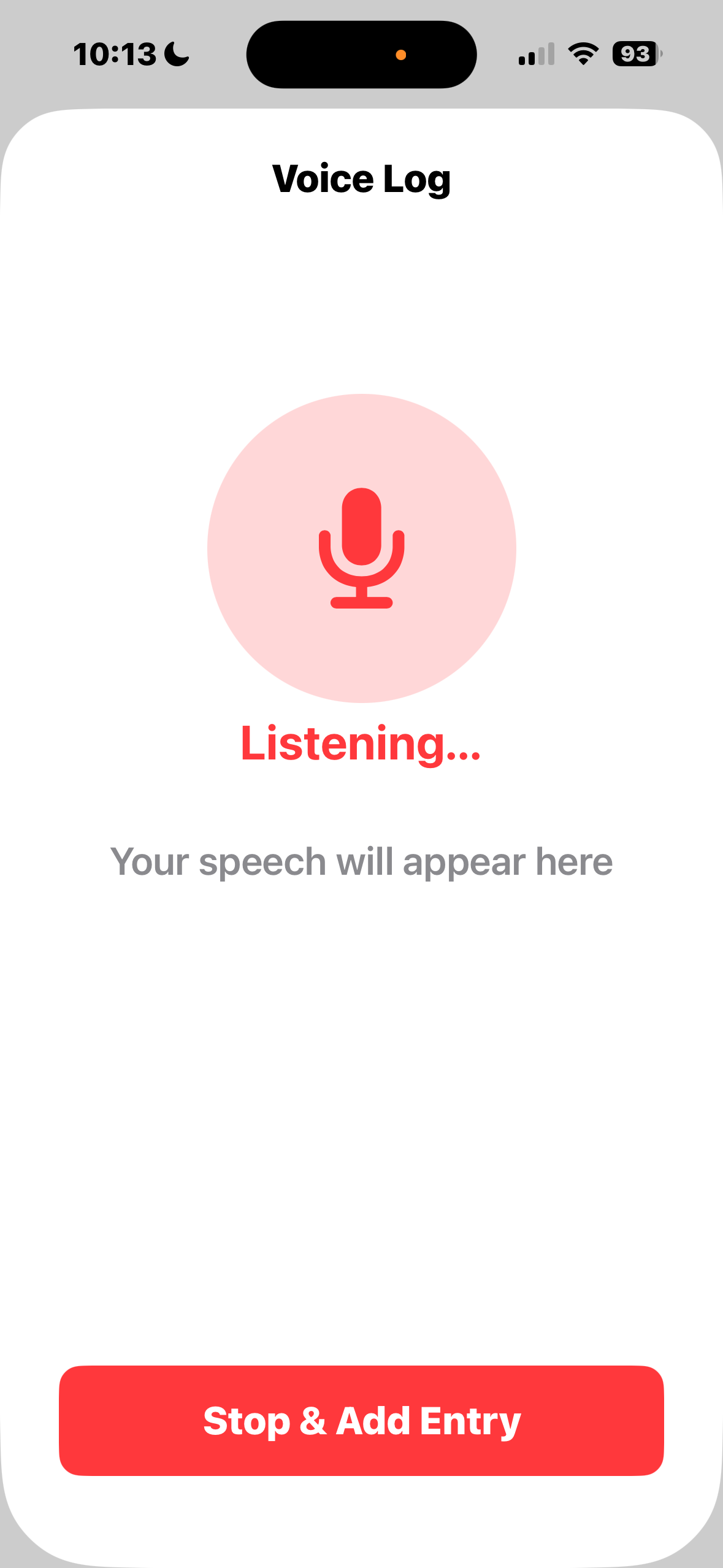
Voice Input
Tap Voice Log and speak naturally: "Adenosine 12 mg IV push" - MedicLog parses medication, dose, and route automatically.
Works completely offline using on-device speech recognition. No internet required.
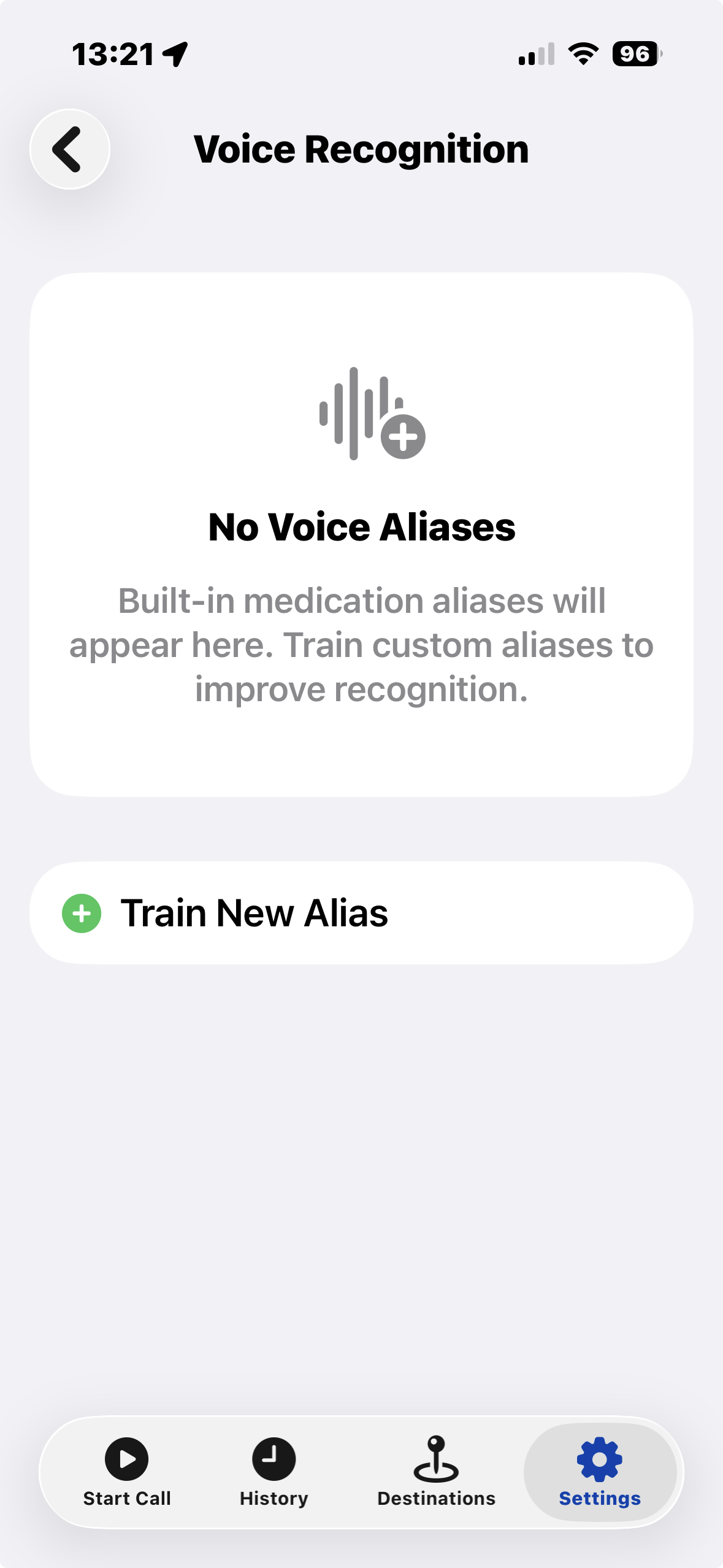
Custom aliases let you train the app to recognize your pronunciation ("epi" vs "epinephrine").
What Voice Recognition Understands
MedicLog parses your speech into structured entries. It recognizes:
- Medications: "Fentanyl 50 mcg IV" — extracts drug name, dose, unit, and route
- Vitals: "BP 120 over 80, heart rate 88, spo2 98"
- Procedures: "IV placed 18 gauge" or "intubated" or "12 lead obtained"
- Cardiac: "Started CPR" or "Shock delivered 200 joules" or "ROSC achieved"
- Corrections: Say "Correction..." to modify a previous entry
The app shows you what it heard before logging. If recognition isn't perfect, edit it in the confirmation screen.
For best results, speak clearly and say dose units explicitly ("fifty mike" or "fifty micrograms" instead of just "fifty").
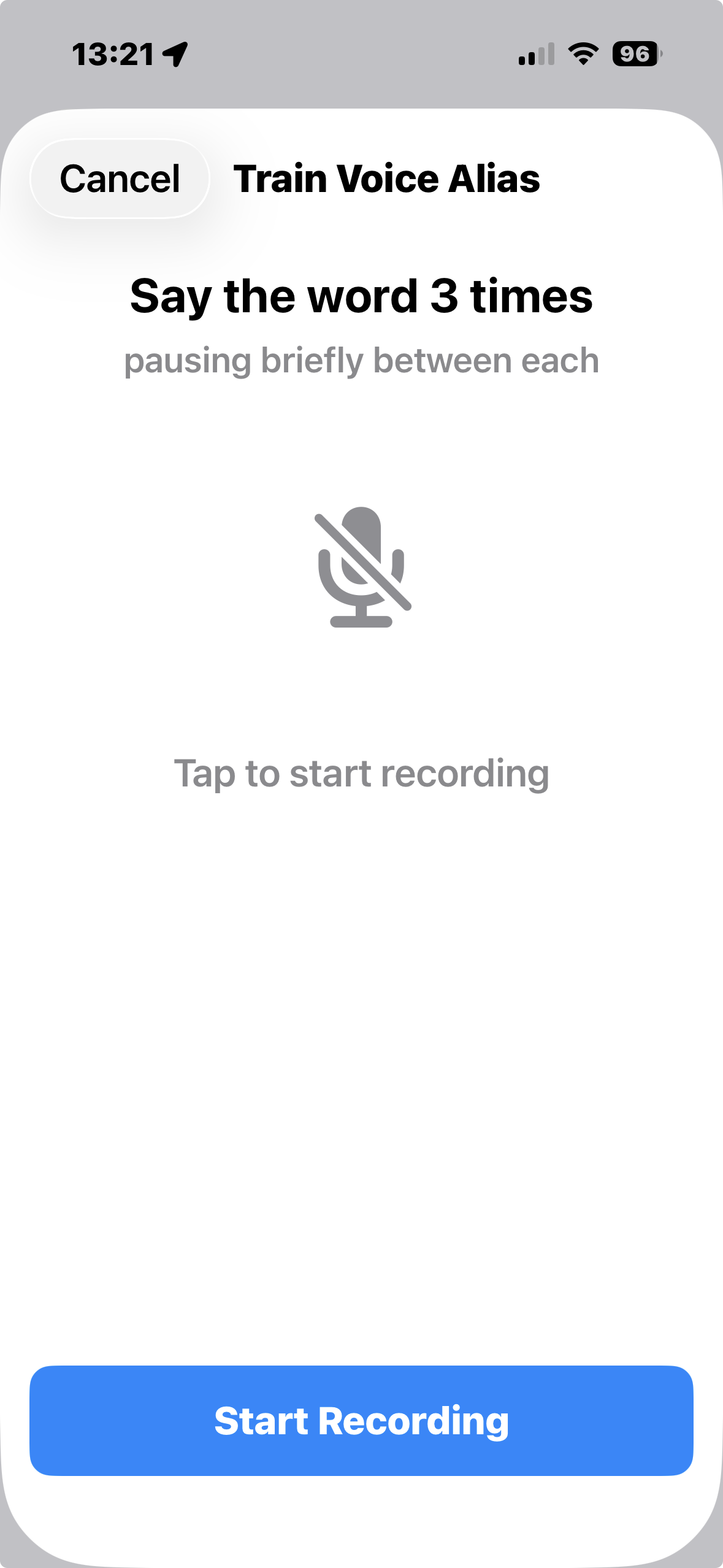
Custom Voice Aliases
Every medication comes with built-in speech aliases (e.g., "epi", "epinephrine", and "adrenaline" all match Epinephrine). Common phonetic mishears are pre-loaded too ("nar can" for Narcan, "so fran" for Zofran).
Train your own aliases: In Settings, tap a medication and record yourself saying the word 3 times. MedicLog extracts the speech variants and saves them. Your custom aliases override the built-in ones.
On Apple Watch: Raise your wrist to auto-launch dictation. Quick suggestion buttons appear for common entries like "Vitals taken", "IV started", "CPR started" — just tap or speak.
Apple Watch
Your MedicLog companion on your wrist. Perfect when pulling out your phone isn't practical.
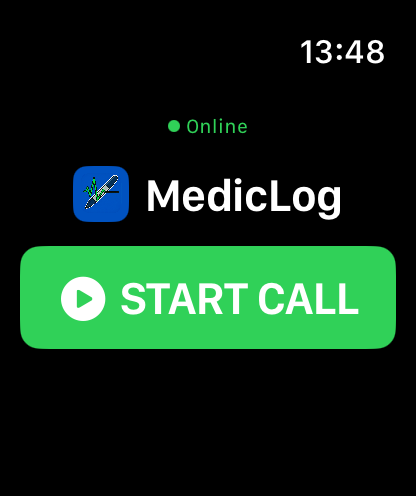
Watch Timers
See all active medication timers on your wrist. Haptic alerts keep you informed without looking.
When a timer expires, double-tap for options or shake your wrist to dismiss.
Voice Log button for hands-free entry directly from the watch.
iPad Support
MedicLog works great on iPad with the same features and more screen space.
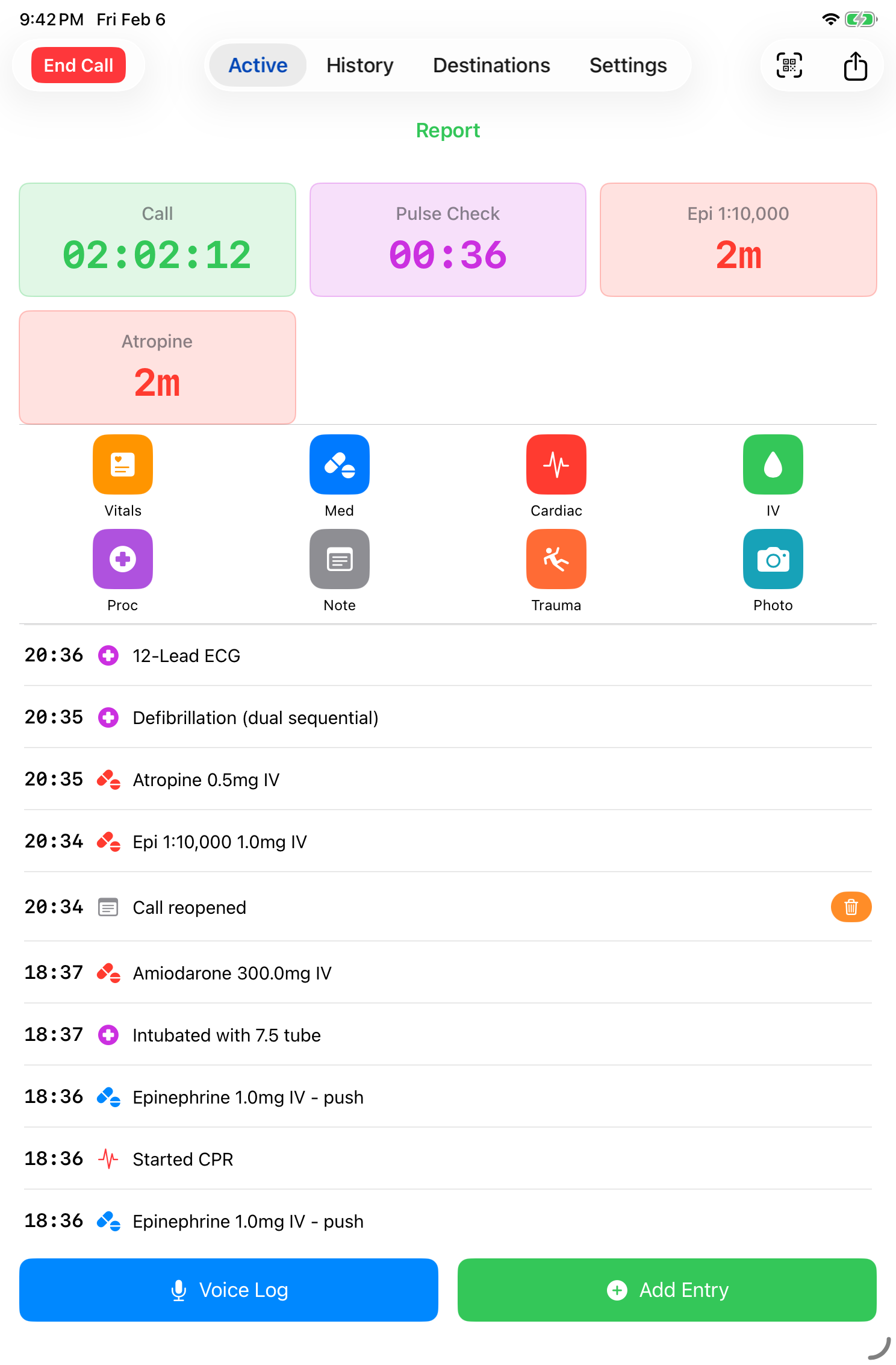
iPad Layout
Full active call view optimized for iPad's larger screen. See more log entries at once.
Same quick-tap buttons, same timers, same voice logging. Everything syncs across your devices.
Great for supervisors reviewing calls or training scenarios.
Reports
Generate professional reports from your call documentation.
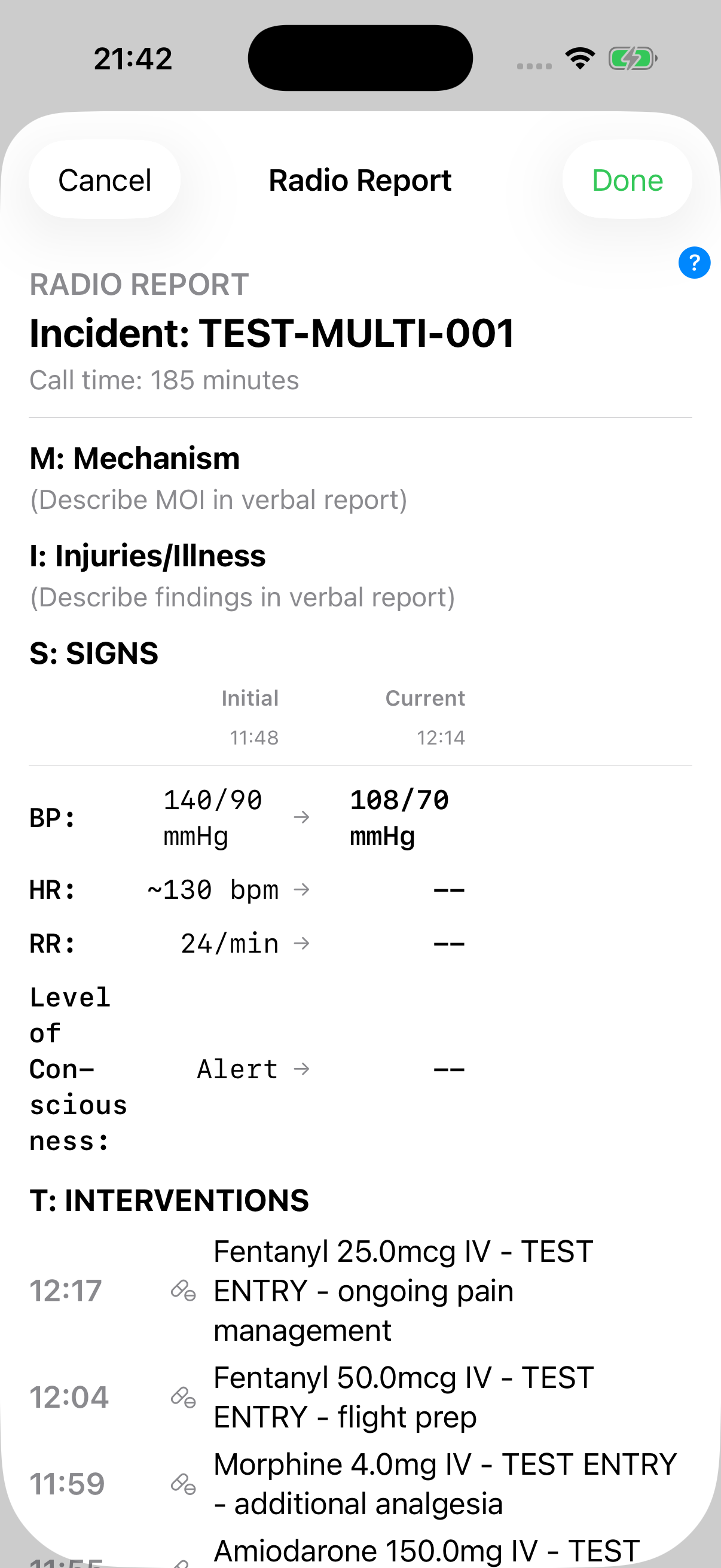
Radio Report (MIST)
Generate a structured radio report using the MIST format: Mechanism, Injuries/Illness, Signs, Treatment.
Shows initial vs current vitals side-by-side. Interventions listed chronologically with timestamps.
Perfect for giving a concise handoff report to receiving facilities or calling in to medical control.
Sharing & History
Share patient care records securely and review past calls.
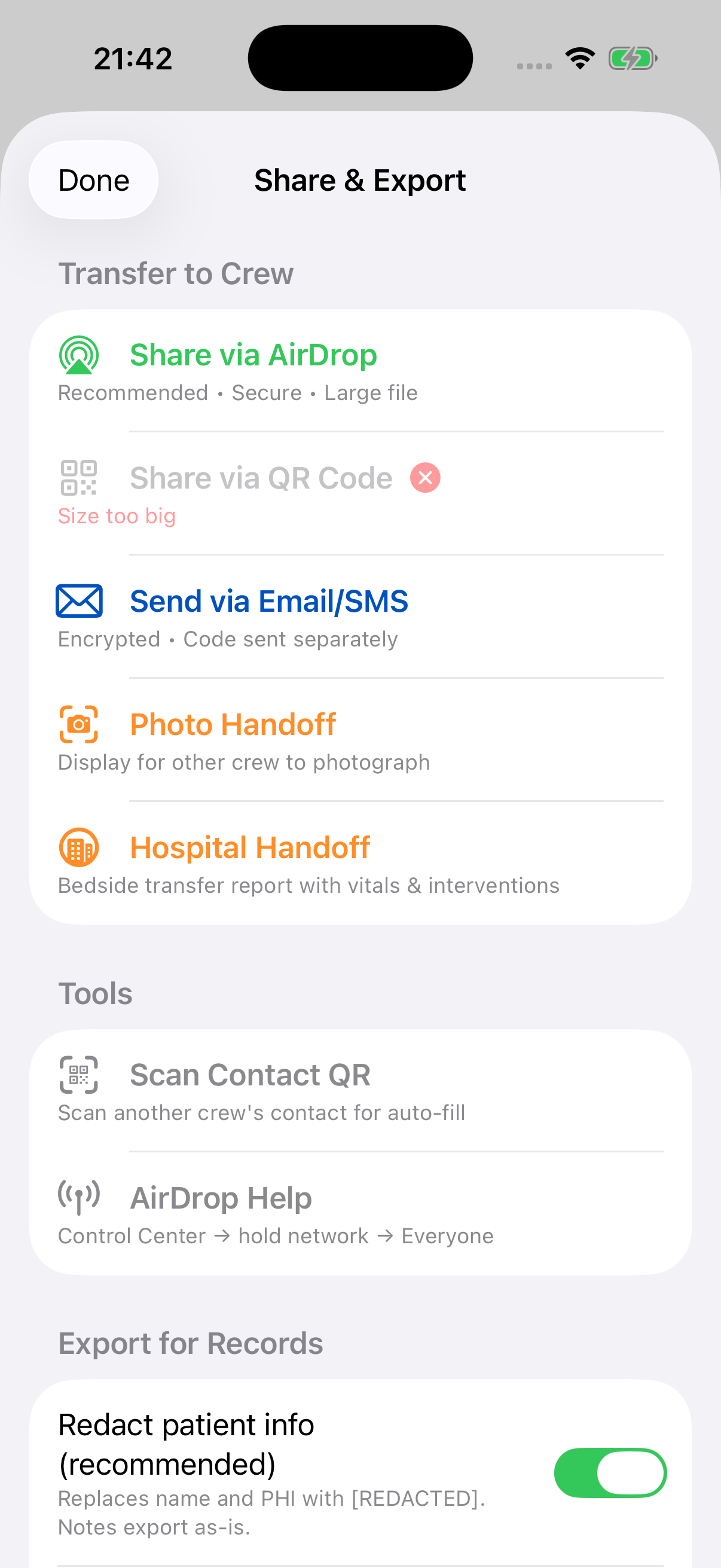
Sharing Methods
AirDrop: Instant, encrypted transfer to another iOS device nearby. Great when you and your partner both have iPhones.
QR Code: Generate a code and have your partner scan it. Works with or without cellular signal. Can also work as a backup encryption method if you don't want to share via Bluetooth.
Email/SMS: Send the call encrypted, with the decryption code sent as a separate message for security.
Photo Handoff: Display the call summary on your phone for the receiving nurse to photograph with theirs (useful at hospital handoff).
Redact Patient Info: Toggle to replace names, DOB, age, and sex with [REDACTED] before sharing - keeps the clinical record while protecting privacy.
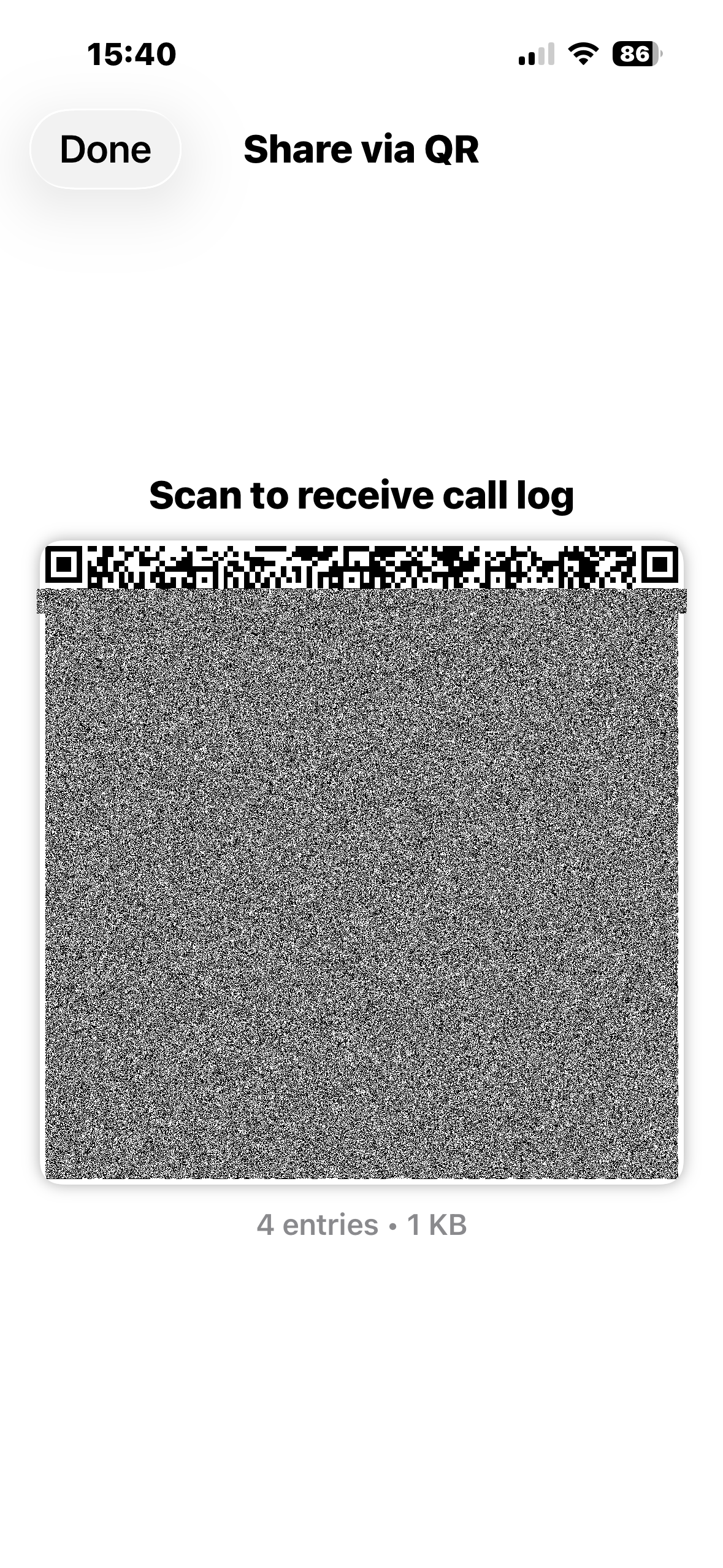
QR Code Sharing Details
Small calls (under ~3 KB): The entire call fits in a single QR code. Your partner scans it and gets the data instantly - no extra steps needed.
Larger calls: The QR code option is disabled (greyed out) when the call data exceeds what a QR code can hold. Use AirDrop instead - MedicLog encrypts the file automatically and shows you a separate QR code with the encryption key for your partner to scan.
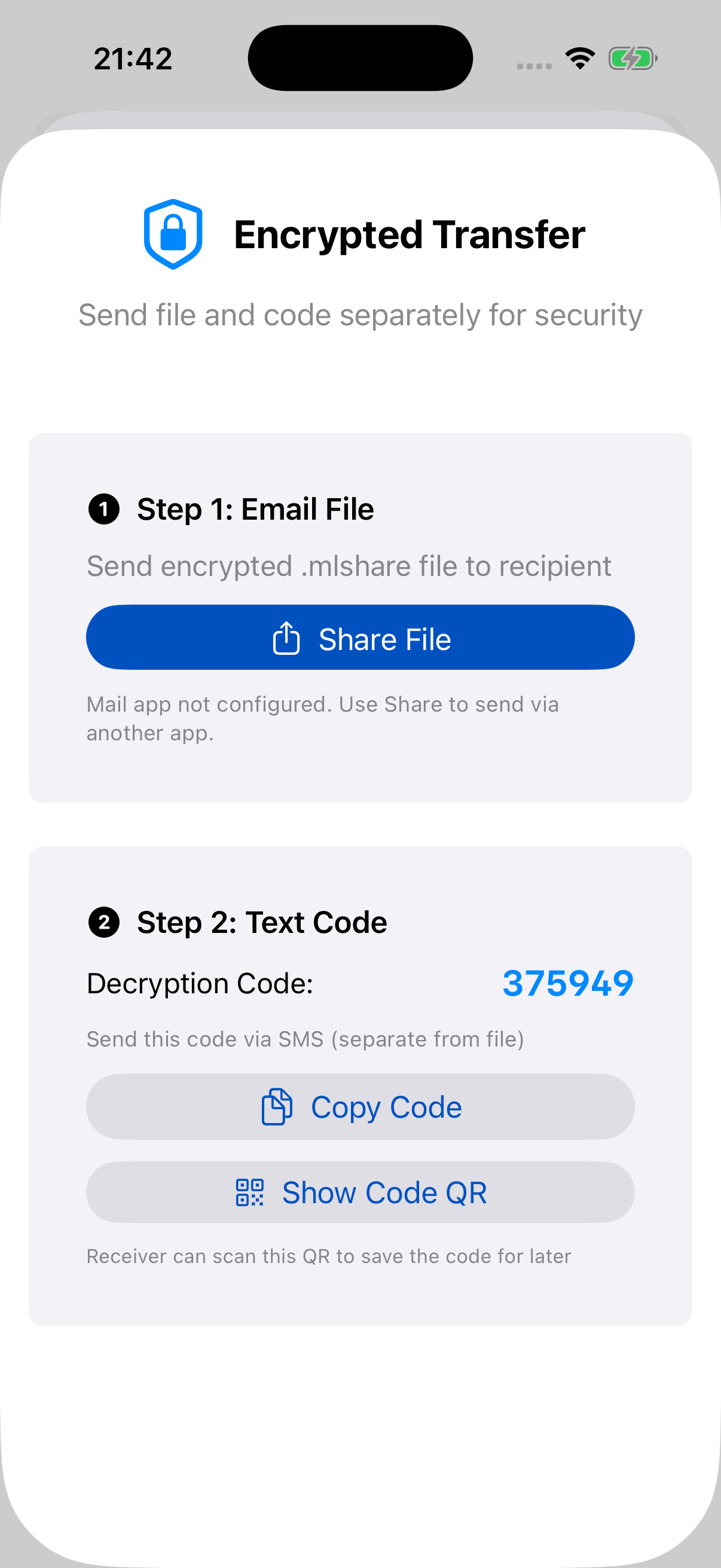
Email/SMS sharing: The call is encrypted with a random 6-digit code. Send the file one way (email) and the code another way (text message) so neither is useful alone.
QR codes use the highest error correction level (30% recovery) so they scan reliably even at angles, in poor lighting, or through dirty screens.
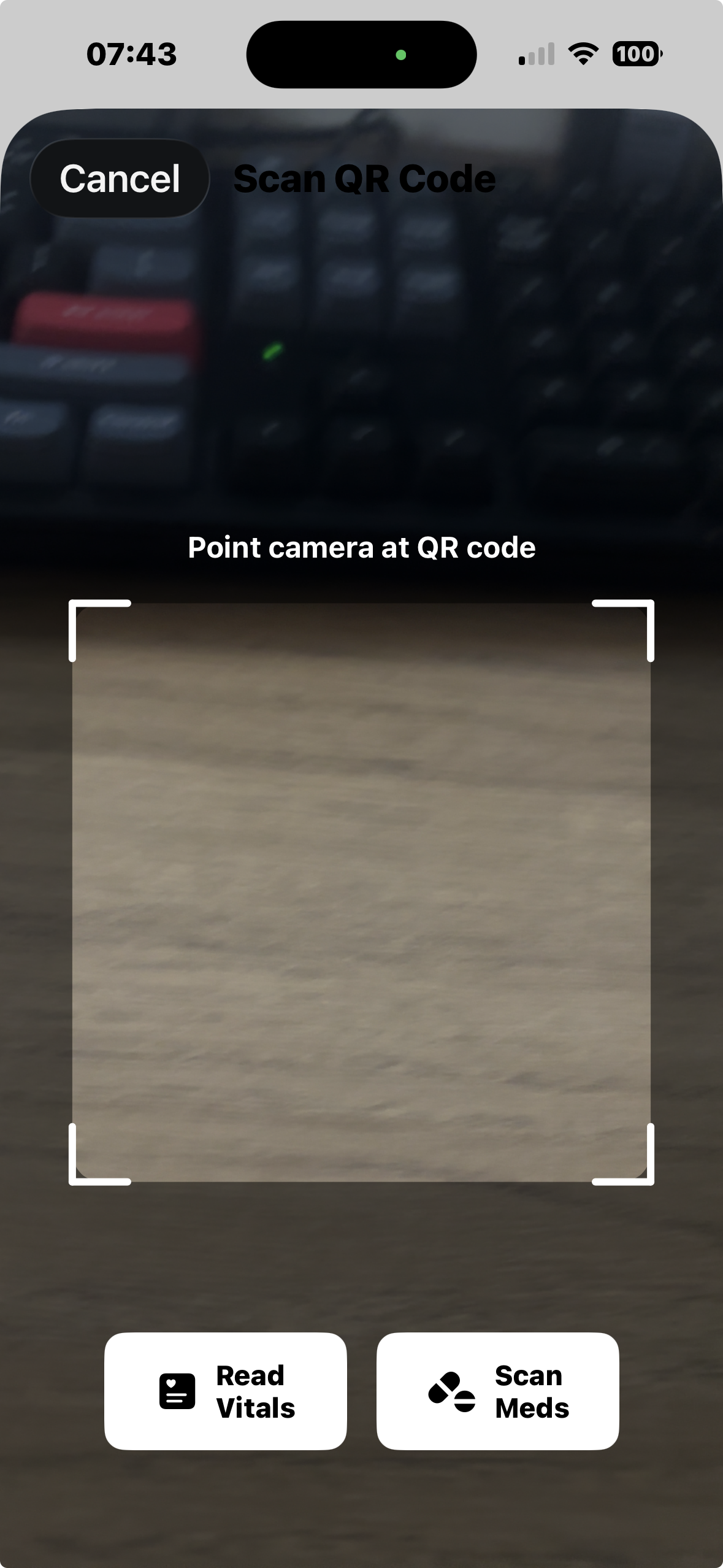
Scanning & Receiving
To receive a call via QR, open MedicLog and tap Scan QR Code from the Share menu. Point your camera at the sender's screen.
MedicLog recognizes what type of QR it's scanning automatically: call data, encryption keys, contact info, or configuration settings.
For encrypted files received via email, enter the 6-digit code the sender texted you. MedicLog auto-fills the code if it detects a matching SMS on your device.
All encryption uses AES-256-GCM (the same standard used by banks and governments). Your data never passes through any server.
Export Formats
PDF (Detailed): Multi-page patient care report with full timeline, medications, vitals, and procedures. Includes embedded photos if any were attached to the call.
PDF (Summary/MIST): Single-page report in MIST format for quick handoff. Key vitals and treatments only.
Text: Human-readable plain text report with all entries and timestamps. Good for pasting into other documentation systems.
JSON: Machine-readable format for integration with ePCR systems. Contains complete structured call data.
CSV: Spreadsheet-friendly format for data analysis or integration with other tools.
When to Use Each Method
AirDrop — Your partner is right here with an iPhone. Fastest and most secure. Recommended for crew-to-crew transfers.
QR Code — Small call, quick one-scan transfer. Disabled for larger calls that won't fit.
Email/SMS — Your partner isn't nearby, or you're transferring to someone on a different platform. Encrypted file sent separately from the decryption code.
Photo Handoff — At the hospital, the RN needs a quick record. Works with any phone, no app needed on their end.
PDF Export — For printing, attaching to hospital records, or emailing to your agency. Choose Detailed for complete documentation or Summary for a quick MIST handoff report.
Patient Information Protection
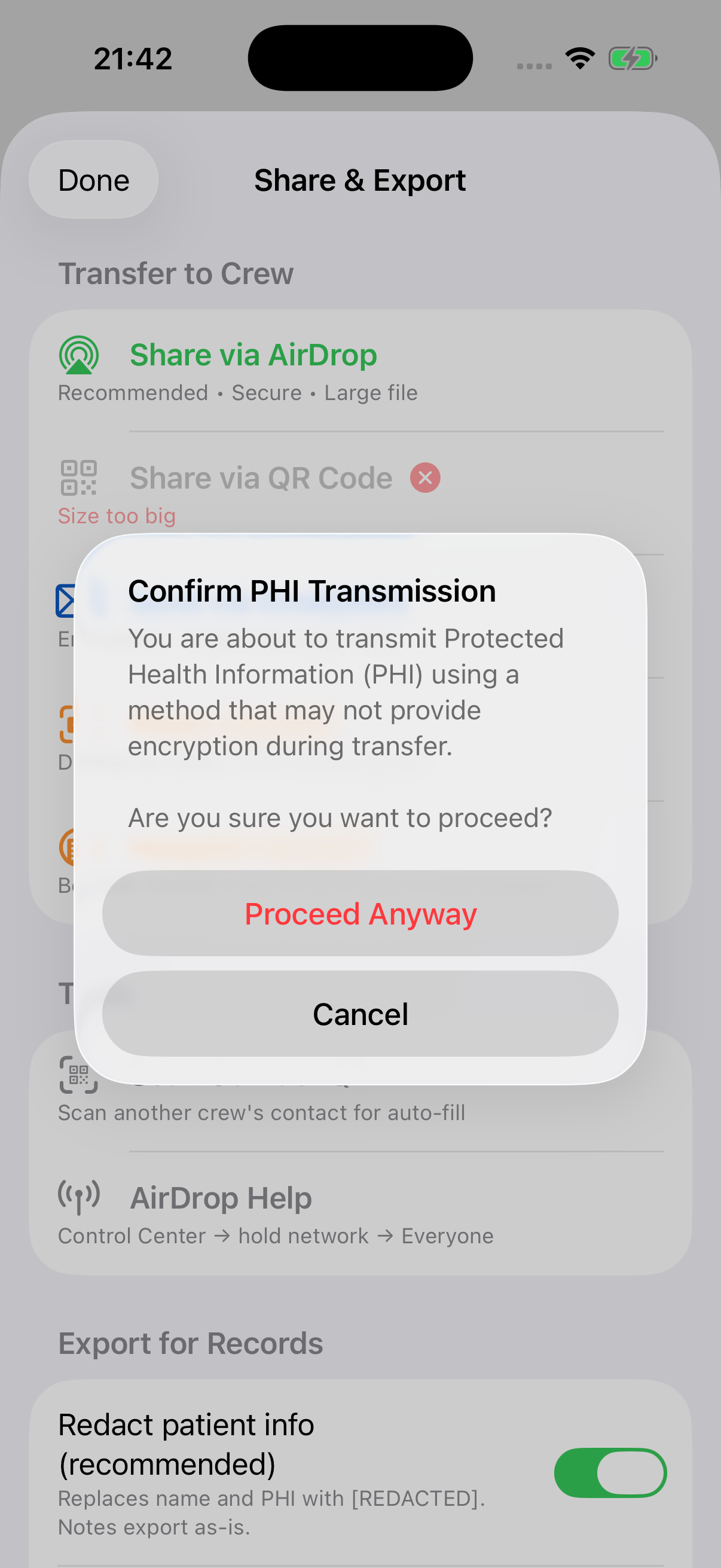
MedicLog detects when a call contains patient-identifiable information (name, DOB, etc.) and shows smart warnings before sharing.
No nagging: If your call has no patient info, or you're using a secure method like AirDrop, you won't see any warnings. They only appear when needed.
Redact toggle: When exporting for records, flip the "Redact patient info" switch to replace names and DOB with [REDACTED]. This resets to ON each session so you never accidentally export unredacted data.
Every export includes a reminder that you're responsible for HIPAA compliance with the exported data.
Call History
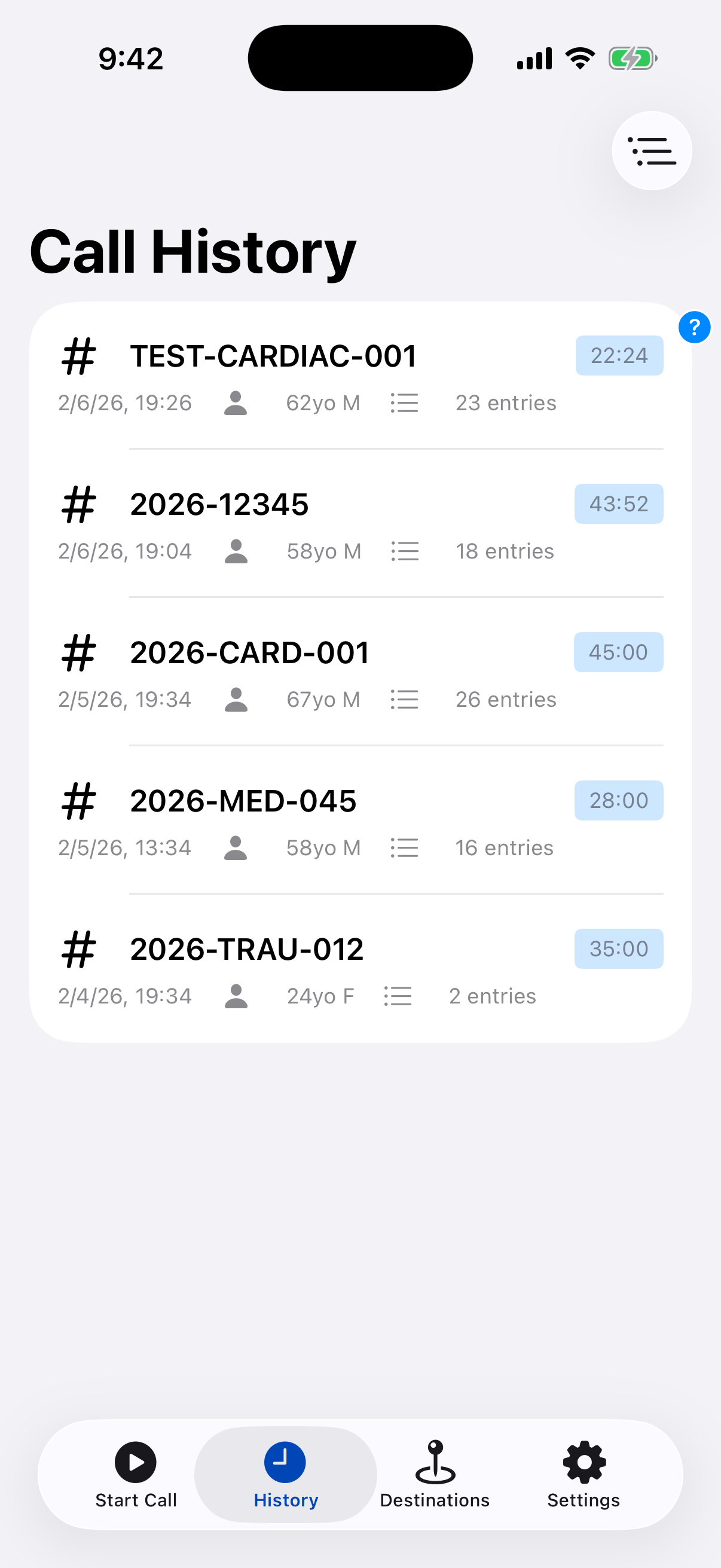
Review past calls from the History tab. See call duration, entry count, and patient info at a glance.
Tap any call to view full details, export records, or resume to add more entries.
All data stays on your device - no cloud sync, no account required.
Radio Reports (MIST Format)
Generate structured handoff reports for medical control or receiving facilities.
MIST Structure
MedicLog generates radio reports in the standard MIST format: Mechanism, Injuries/Illness, Signs, Treatment.
Mechanism: How the injury happened (from patient demographics and initial notes).
Injuries/Illness: Chief complaint and pertinent findings from your assessment.
Signs: Initial vital signs and any changes during transport. MedicLog shows initial vs current for easy comparison.
Treatment: Interventions performed with timestamps - medications, procedures, oxygen, fluids, etc.
Access the radio report by tapping the green Report button in the toolbar during an active call. MedicLog also offers it when you end a call via the transfer report prompt.
Perfect for radio traffic to medical control or for structured hospital handoff. See our Handoff documentation for detailed handoff strategies.
Photo Handoff Mode
Bedside display for hospital crews to photograph your call documentation.
Display Mode for Photography
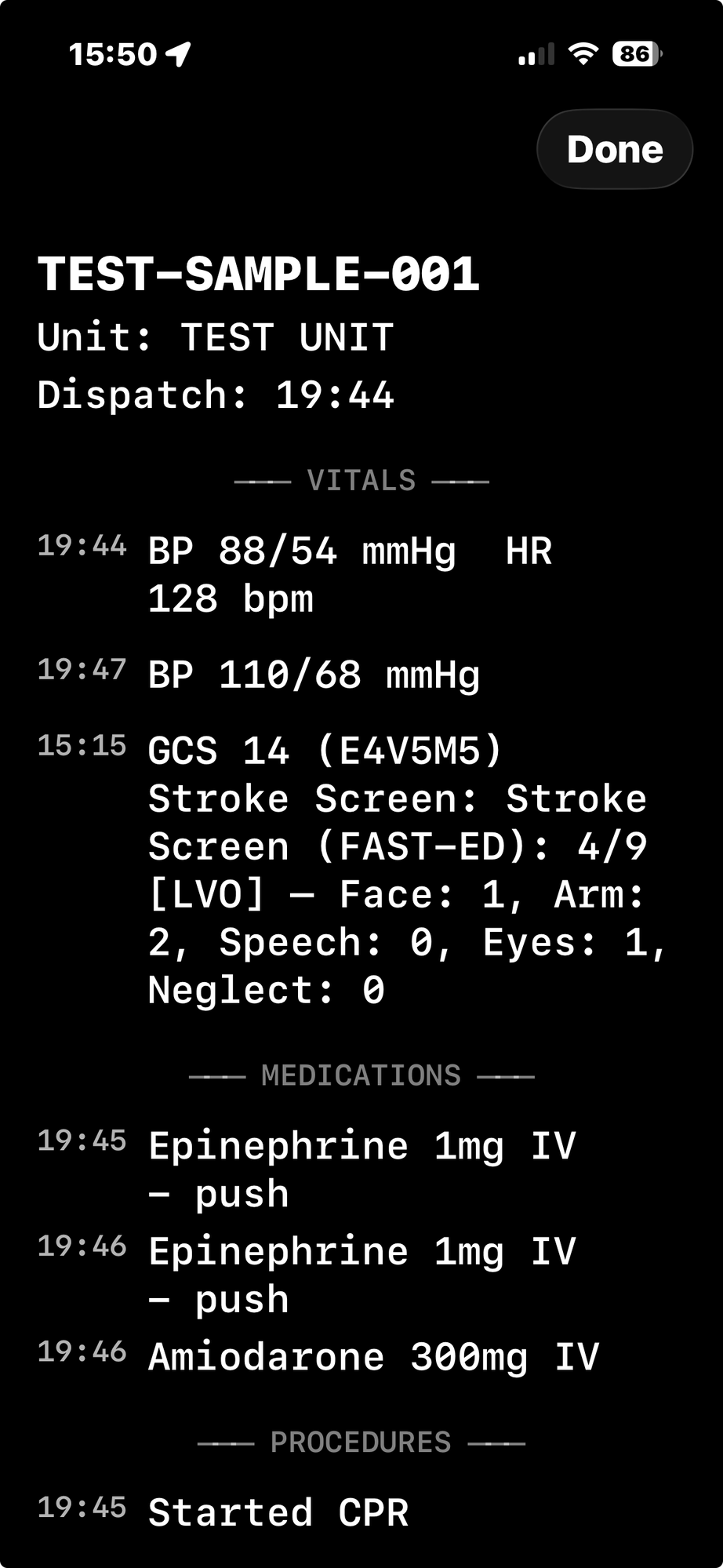
Select Photo Handoff from the Share menu. Your iPhone switches to a black background with white monospaced text - optimized for clear, glare-free photos.
Screen brightness automatically maximizes. Content is organized with clear section dividers (Vitals, Medications, Procedures, Notes). Vitals taken within 2 minutes are grouped on one line.
Use the large chevron buttons (sized for gloved hands) to page through the report. Text snaps to line boundaries so nothing gets cut off mid-line. Controls auto-hide after 3 seconds for clean screenshots.
Why Photo Handoff? It works with any phone, any ePCR system, no app required on the receiving end. When the hospital's computers are busy or down, this is the most reliable way to get your documentation to the receiving nurse.
Hospital Handoff Report
Hand off your documentation directly to the receiving facility with a professional report.
Hospital Handoff
Tap the Report button in the toolbar during any call, or find it in the Share menu. MedicLog can also prompt you automatically when you end a call.
The report is organized for bedside reference, not as a minute-by-minute timeline. Sections include:
- Vital Signs Trend: Scrollable table showing BP, HR, RR, SpO₂, Temp, and GCS over time (newest first)
- Medications Given: Grouped by medication name with doses and routes - easy to scan "what did they get?"
- Procedures: Color-coded by type (IV access, cardiac, monitoring, transfer)
- Assessment & Notes: Timestamped clinical notes and status changes
- Patient's Own Medications: Pre-existing meds reported by the patient (marked as not EMS-administered)
Optional dispatch times section lets you record Dispatched, On Scene, Transporting, and At Hospital milestones.
Formulary Customization
Tailor MedicLog's medication list to match your scope of practice and protocols.
Customize Your Medications
Go to Settings → Formulary Management to control which medications appear in your picker.
Enable/Disable: Turn off medications you don't carry (e.g., paramedic-only drugs if you're an EMT). Only enabled meds appear in quick entry.
Add Custom Medications: Add agency-specific medications, off-protocol drugs you might use, or documentation-only entries (like "Protocol Violation Documented").
Set Default Doses & Routes: Define standard doses and routes for each medication. When you select a med, it pre-fills with your defaults - faster entry.
Organize by Category: Reorder categories or create custom groupings to match your mental model of your formulary.
Configure Timer Intervals: Set how long timers run for each medication (redose windows, regulatory intervals, etc.). Choose a timer color from 8 presets or pick a custom color so you can tell medications apart at a glance.
Profile Switching
Create separate profiles for different roles and switch between them instantly.
Multiple Profiles
Create profiles in Settings for different roles: Paramedic, EMT-Basic, Critical Care, Supervisor, or custom titles.
Each profile remembers: your name, certification level, agency/unit, default destination, and custom formulary settings.
Quick switch: When starting a call, tap the profile name at the top to change who's logging. Profiles switch instantly.
What carries across profiles: Your agency's destination list, shared custom medications, and global preferences (timer colors, display settings).
What's profile-specific: Your name, unit assignment, which meds are enabled, and your personal documentation preferences.
Export/Import: Export your profile as a .mlconfig file to share with crew members or transfer to a new device. Importing creates a new profile — it never overwrites your existing data.
Perfect for medics who work multiple roles, or crews where multiple people use the same iPad.
Quick Configuration
Set up MedicLog instantly using QR codes for role presets or custom display settings.
Role Presets
Scan a QR code to configure MedicLog for your certification level. Each preset enables the appropriate medications, procedures, and features for EMR, EMT-Basic, AEMT, Paramedic, or Critical Care scope.
Display Settings Creator
Customize individual display preferences: theme, time format (24-hour/UTC), timer visibility, vitals collapsed display, and timeline grouping. Generate a QR code to apply your settings instantly.